The Day page
The Day page shows your working day in order: where you start, each call with the drive to it, and when you'll be home. You start the day, finish each call and send its invoice from here.
Diary › Day
Every plan · four parts need Pro
Go to a day
The strip of days across the top scrolls as far as you like either way. Each day has a ring that fills as the day fills up. On days already done, the ring shows what was paid in green, what's owed in gold and what was skipped in grey.
Tap a day to open it. On any other day, the round today button fills in; tap it to come back.
To write a note on a day, like "Holiday" or "Belfast", tap the day's note. It shows on Day, Ahead and Month.
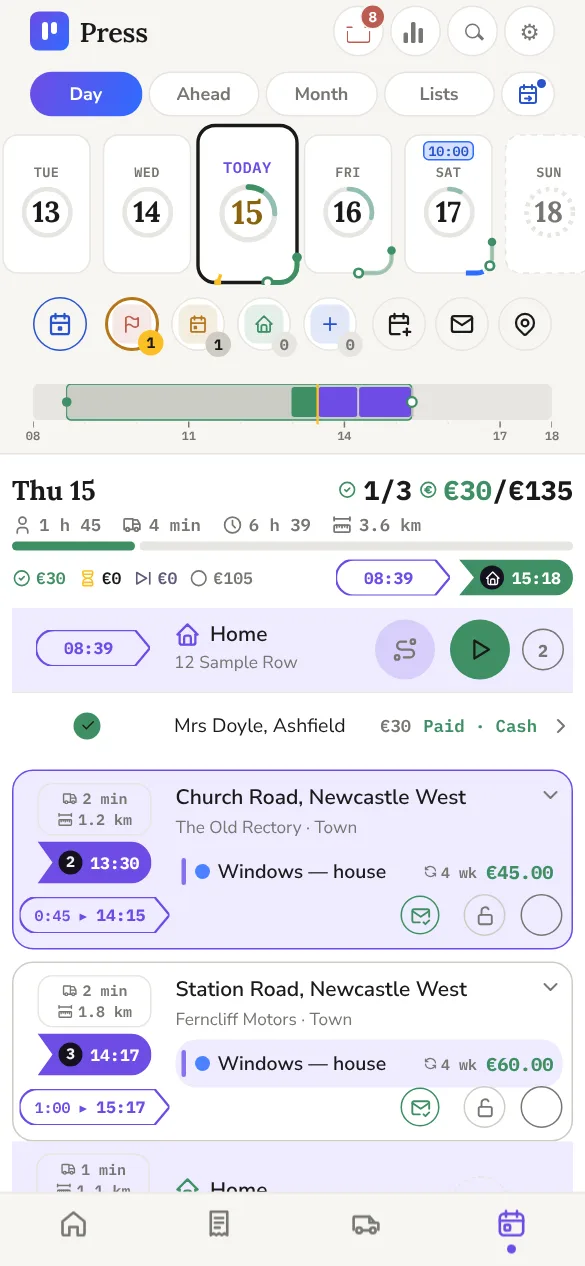
Read the day
Under the date you'll see how many calls are done, the money taken against the day's total, and the time and distance you'll drive. Each call shows its time, the drive to it and its price.
The bar above the list is the day as time: working time, calls, drives and free time along one line. Tap it for more.
Start and end the day
- The Home row at the top is where you leave from. Tap it to pick Home, your first call or somewhere else, and set your leaving time. The calls move with it.
- Tap the green start button on the Home row as you leave.
- When you're home, tap it again to end the day. Press asks about any call you didn't reach and offers the next day with room.
Open the finish row at the bottom to see whether you'll be home by your usual time. Running late, it turns red and offers an earlier start.
With Record my drive on, start and end also record the day's driving. That needs Pro.
If it doesn't work
Forgot to tap start, or tapped end late? Tap Change on the Home row and put in the real time. It works on a past day too.
Open a call
Tap a call to open it. You'll see the address, how often the job comes round, a small map of the drive in, and the gate code and notes if it has them.
Tap the call's number for directions: it opens your maps app with a route to the house.
Two jobs at the same door on the same day show as one call.
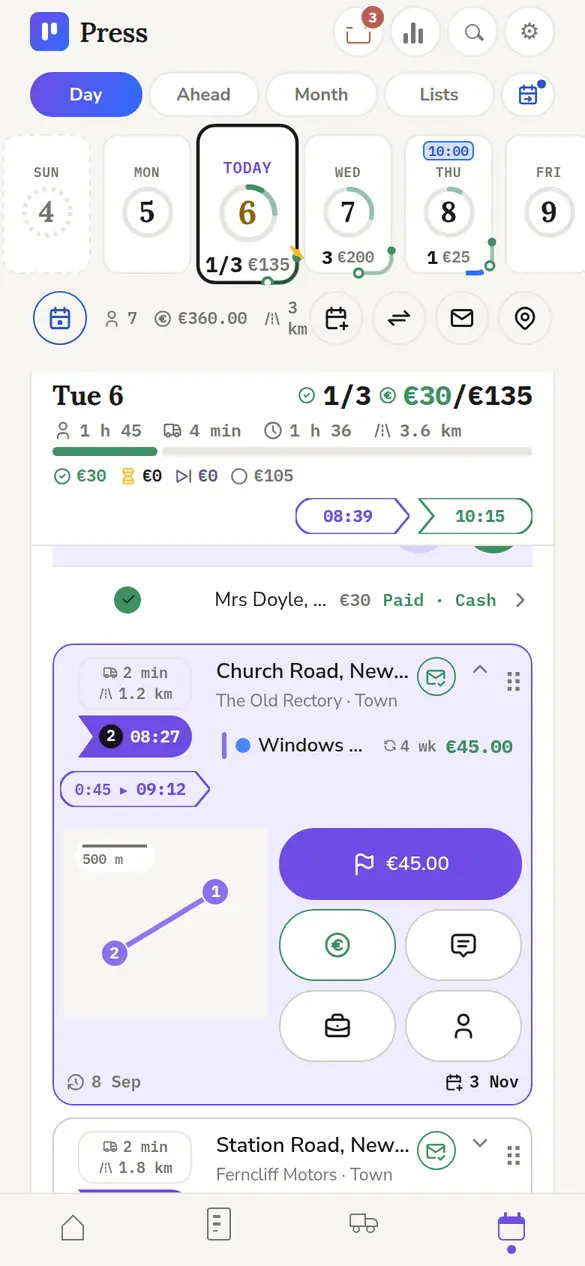
Finish a call and get paid
- Tap the price button on an open call to finish it.
- Each service has a line: done, skip, or next time. Change a price at the door if you need to, or add a service there and then.
- Tap Invoice to send the invoice, or Pay now to record how they paid, then Done.
Marking a call done makes its invoice, numbered and dated. If you'd rather send invoices later, turn this off in Settings › Messages.
Paid at the door? Record every way they paid and the amount. The money is held against the call until it's invoiced.
With Stripe connected, Pay now can take a card: the customer taps their card or phone on the back of yours. That needs Pro.
Move calls to another day
- Tick the calls you want to move. Each call has a tick at the foot of its card. Select all ticks the whole day.
- Tap Move on the bar along the bottom and pick the day.
- Choose Just these calls, or These and the rest to move the calls after them too.
You can also press a call's tick and slide it: up or down the day, or onto a day in the strip at the top. Everything you ticked moves with it, and one Undo puts it all back.
If it doesn't work
A call won't drag? It's probably locked. Tap its padlock to unlock it, then move it.
Put the rest of the day in order
ProNeeds Press Pro. On Foundation the button isn't shown.
The round route button on the Home row puts the calls you haven't done yet in the order with the least driving. Done calls, a customer's hours and locked times stay as they are, and Press shows when you'd be home.
In an estate, it works along the streets in one sweep: houses within about 150 metres of each other count as next door.
Lock a call to its day or time
ProNeeds Press Pro.
Tap a call's padlock to lock it to its day, or to a time. A locked call can't be dragged, and it won't start before its time when the day is put in order.
Bank holidays
Ireland's public holidays are shaded and named in the Diary, and Press treats them as days off when it plans. A day with calls already on it says so and offers to move them; Press never moves those by itself. Turn this off in Settings › Scheduling.
Can I stop Press making an invoice every time I finish a call?
Yes. Turn off invoices on done in Settings › Messages, then send invoices when you're ready.
Why are two jobs showing as one call?
They're at the same door on the same day, so Press puts them together. Open the call to see both.